
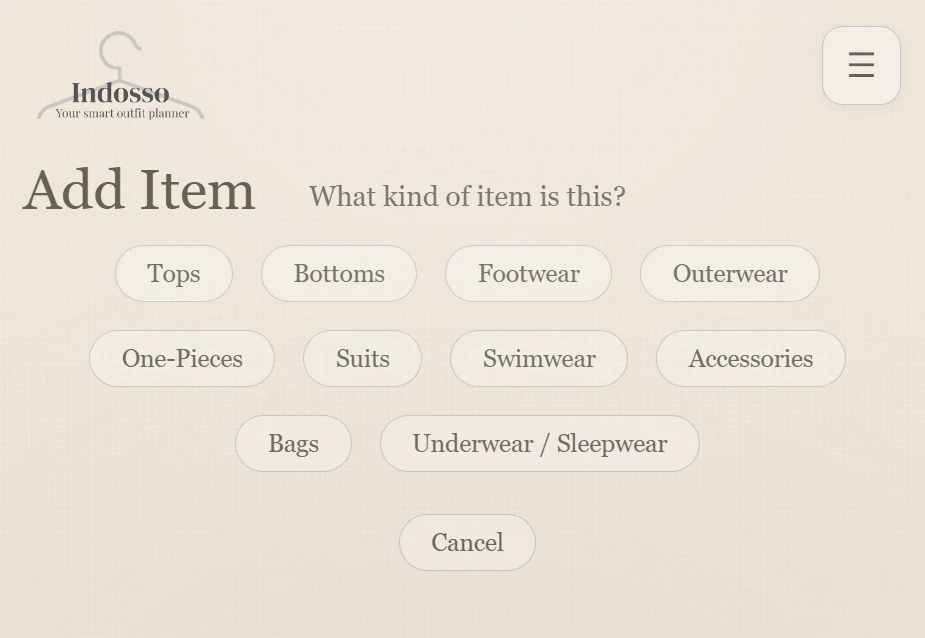
Step 1 of 4
Choose a clothing category.
Select Add Item in your Closet. Indosso asks what kind of clothing you're adding: Tops, Bottoms, Footwear, Outerwear, One-Pieces, Suits, Swimwear, Accessories, Bags, or Underwear / Sleepwear.
Build Your Closet · Get Dressed · Plan Ahead · Plan a Trip · Trip Active
Start by adding clothes you already own. You don't need to photograph them. Choose from a built-in catalog of 500+ clothing items, 100+ colors, and 60+ patterns.
Step 1 of 4
Select Add Item in your Closet. Indosso asks what kind of clothing you're adding: Tops, Bottoms, Footwear, Outerwear, One-Pieces, Suits, Swimwear, Accessories, Bags, or Underwear / Sleepwear.
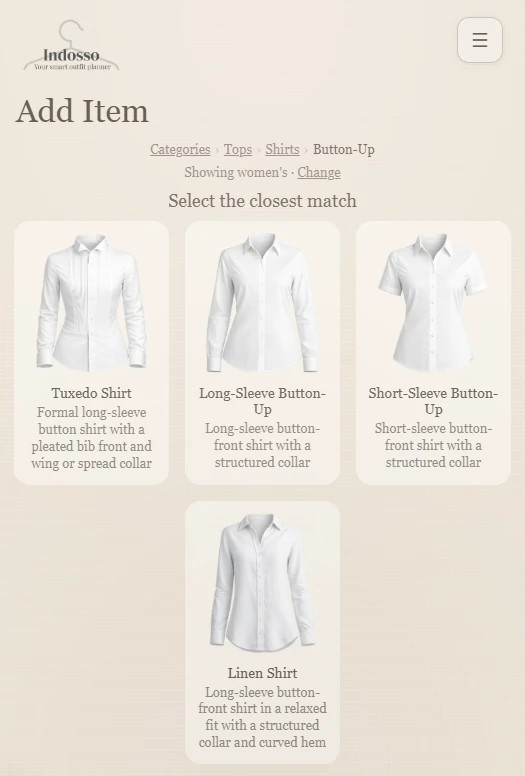
Step 2 of 4
Choose Men's, Women's, or Show all to browse the catalog. Indosso then guides you through more specific choices. These are browsing filters only: they never limit what you can add or the outfits Indosso suggests.
For example, to add a button-up shirt:
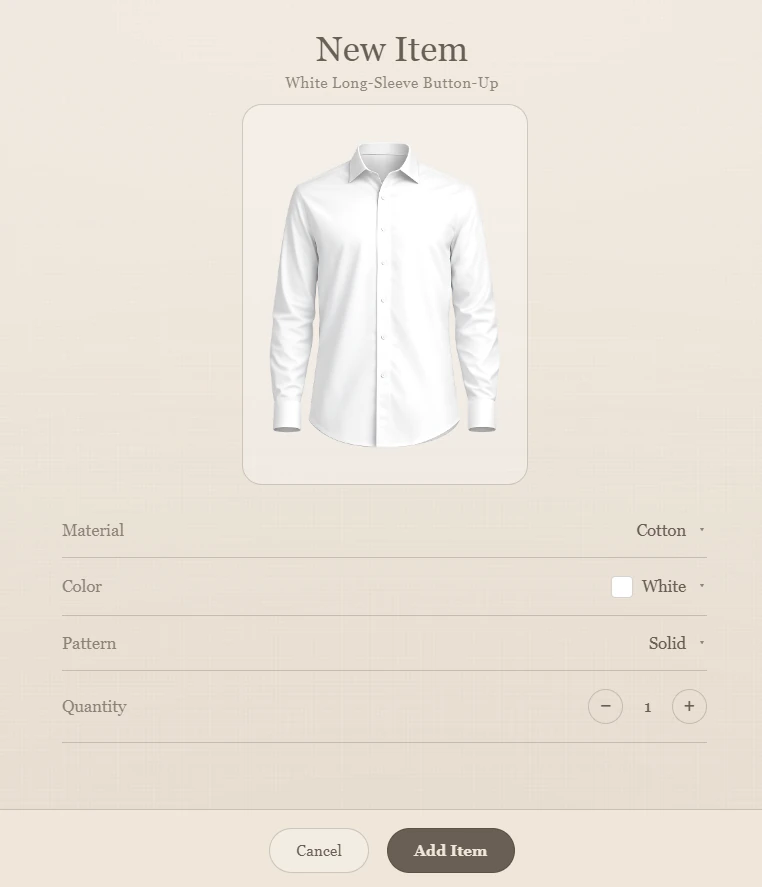
Step 3 of 4
Indosso displays the selected item and asks you to specify:
Have several of the same kind of shirt in different colors or patterns? You don't need to start over for each one. Increase the quantity, then choose the color and pattern for each copy. For example, you can add a black, blue, gray, and white button-up shirt together, in one Add Item session. With just a few selections, your digital closet can reflect the different versions hanging in your real closet.
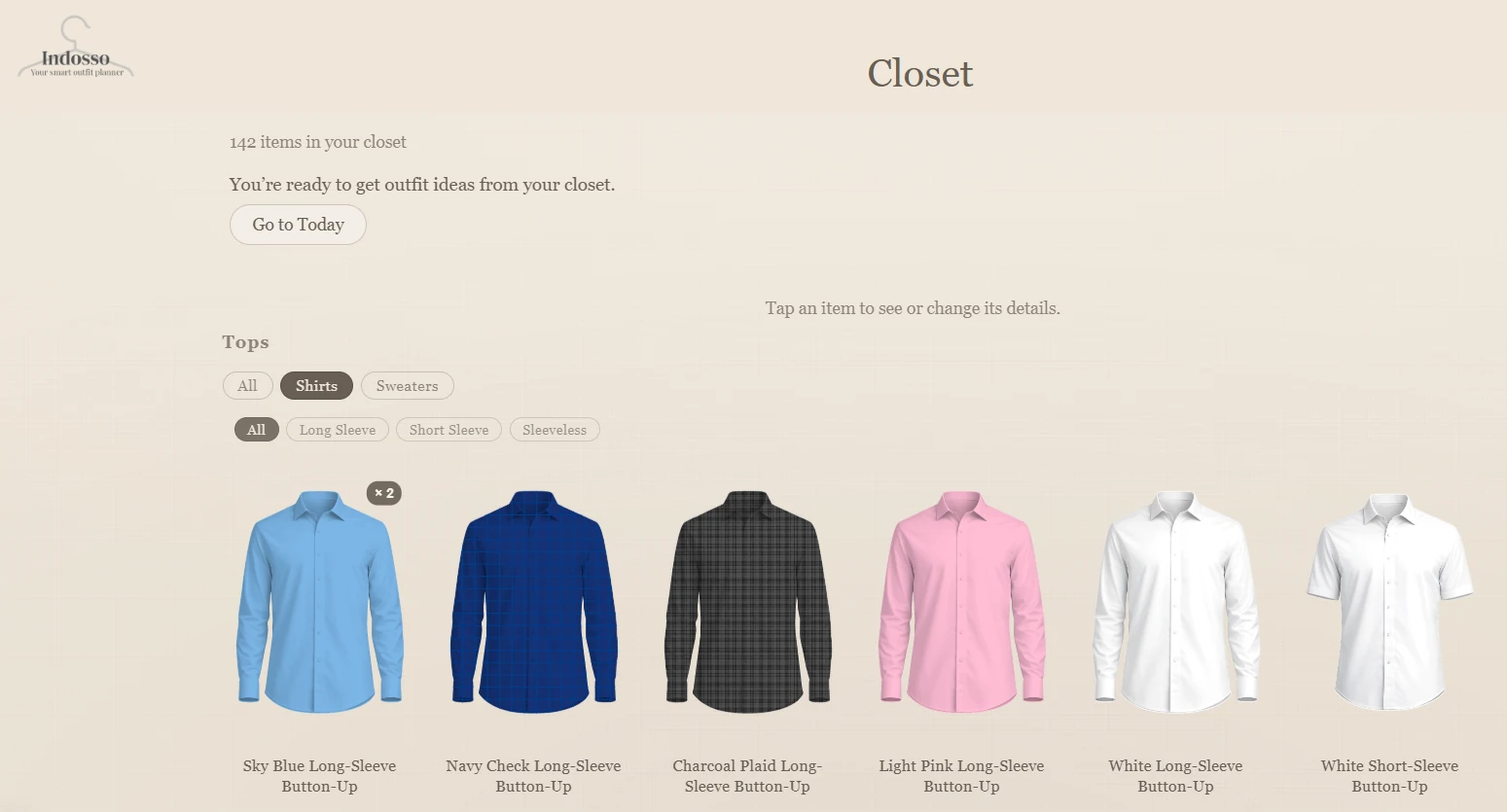
Step 4 of 4
Select Add Item to save the garment or garments together. Indosso displays the individual versions in your digital closet.
Repeat the process for your other clothes and shoes. Indosso guides you toward having enough pieces to create two everyday outfits and one dressier outfit.
Once your closet is ready, you can begin creating outfits from the clothes you own.
Once you've added enough clothing to your digital closet, you're ready to see what Indosso can put together.
Step 1 of 5
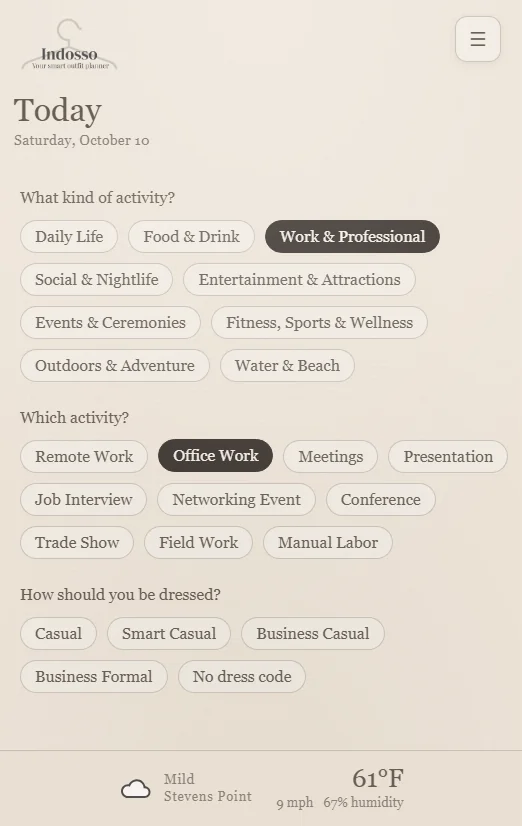
Open the menu and select Today’s Outfits.
Choose an activity category, such as Daily Life, Food & Drink, Work & Professional, or Social & Nightlife.
Then select your specific activity. For example, choose Work & Professional → Office Work.
Indosso also asks how you should be dressed. Depending on the activity, you may choose Casual, Smart Casual, Business Casual, Business Formal, or No dress code.
Step 2 of 5
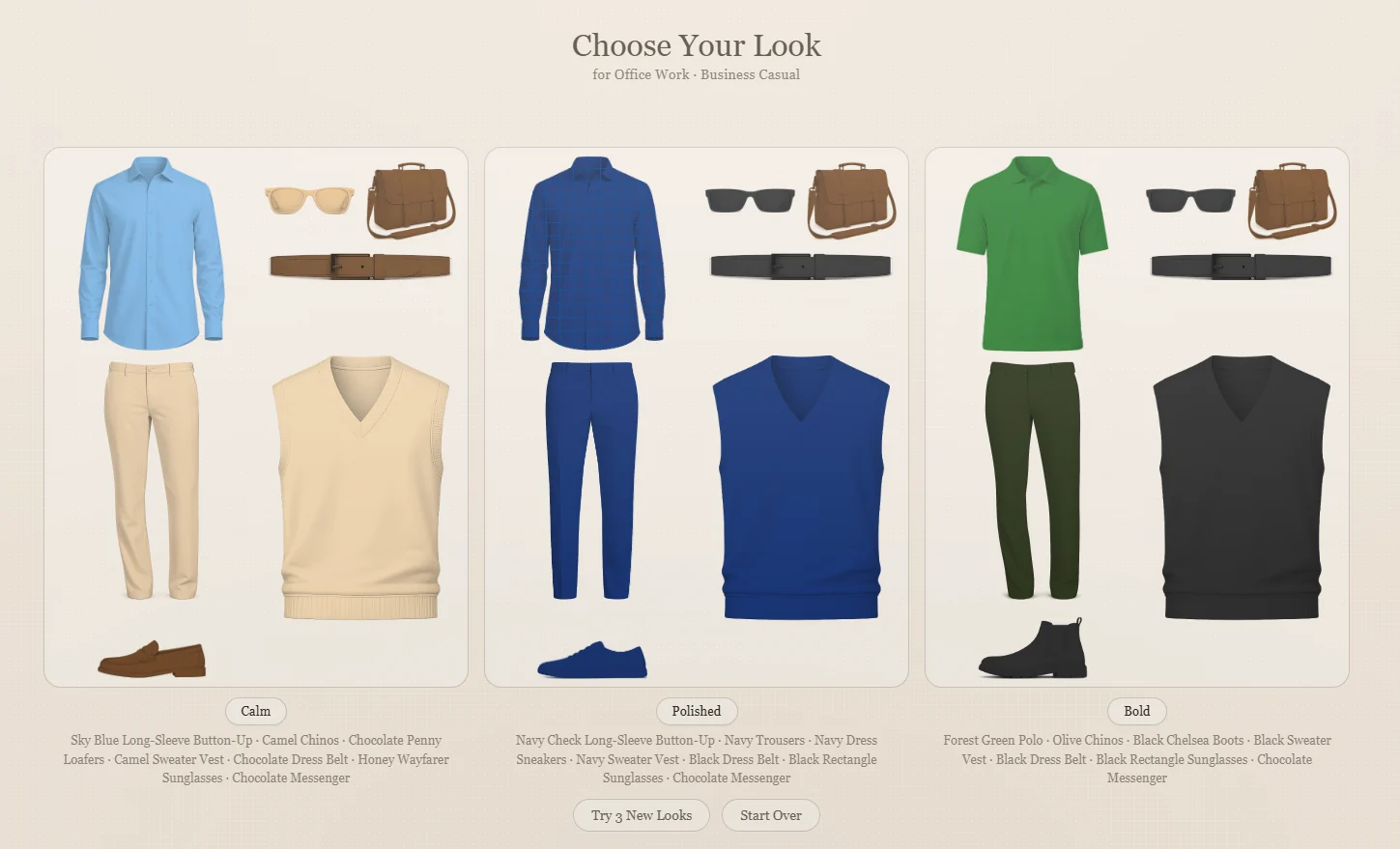
Indosso considers your clothing, local weather, activity, dress expectations, and outfit history to put together suitable combinations from your own closet.
You'll receive up to three approaches:
Each outfit displays the individual garments and accessories, along with their descriptions, so you know exactly which pieces to wear.
Step 3 of 5
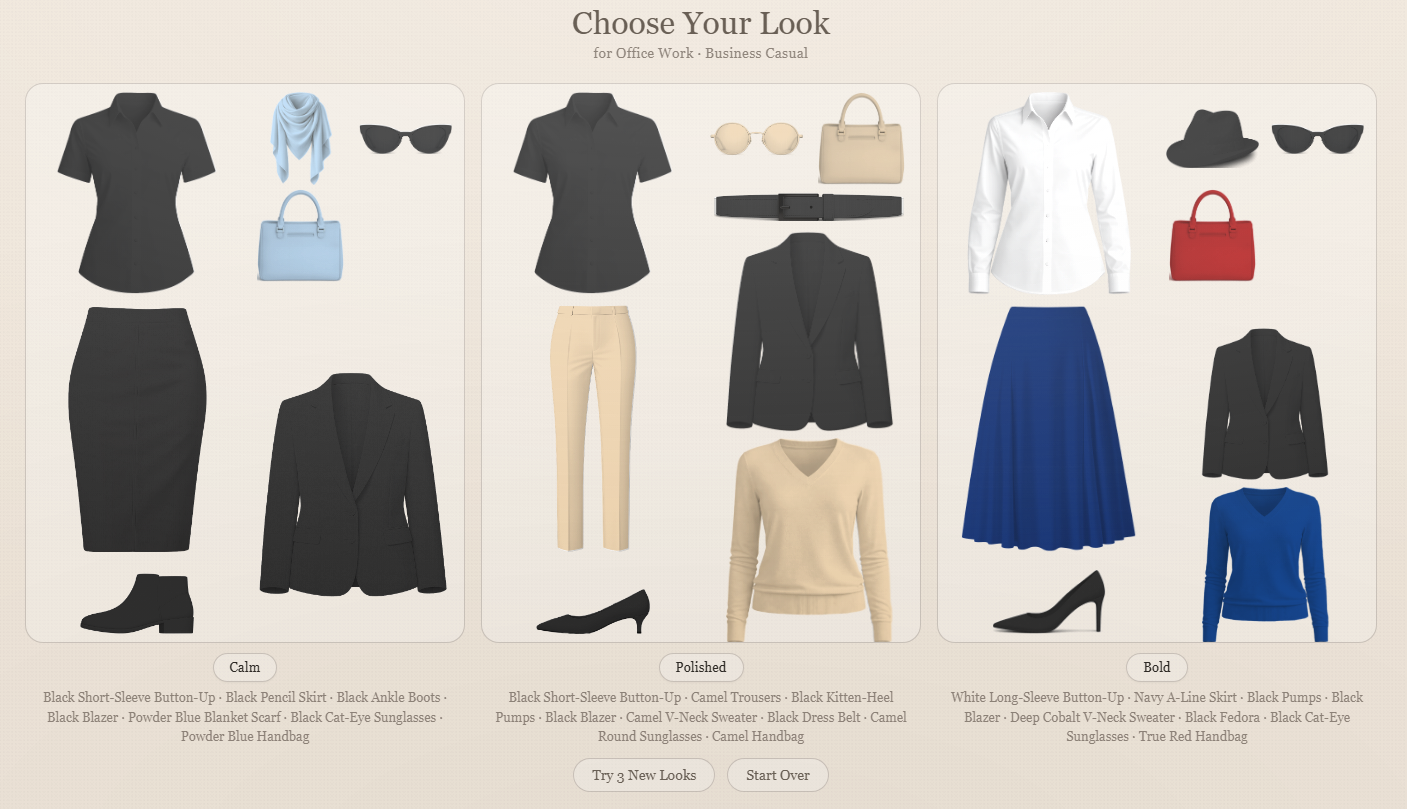
Not quite what you had in mind?
Select Try 3 New Looks to explore more combinations from your closet.
Continue through the available options until you find something you like. If no new looks appear, tap Try 3 New Looks again to restart the rotation.
Step 4 of 5
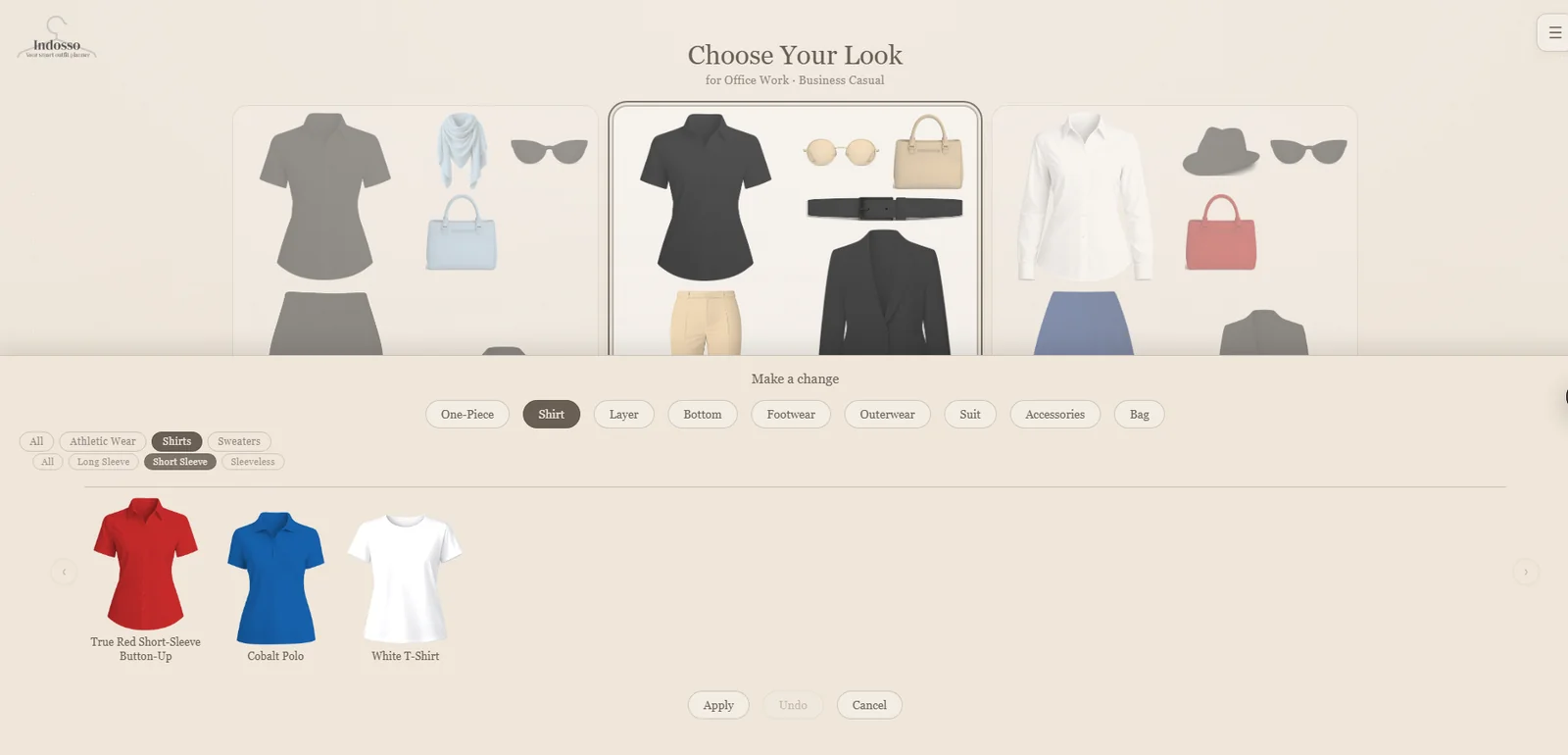
Found an outfit that's close, but not quite right?
Select the outfit, then choose Make a Change.
Choose the type of garment you'd like to change, such as a shirt, layer, trousers, footwear, or accessories. Browse the available alternatives from your closet, select your preferred replacement, and choose Apply.
You can make additional changes until the outfit feels right.
Step 5 of 5
Once you're happy with your outfit, choose what to do next:
Changed your mind immediately after confirming? Undo lets you reverse the action during the available undo window.
Your wardrobe, your choices. Indosso makes suggestions, but you always have the final say.
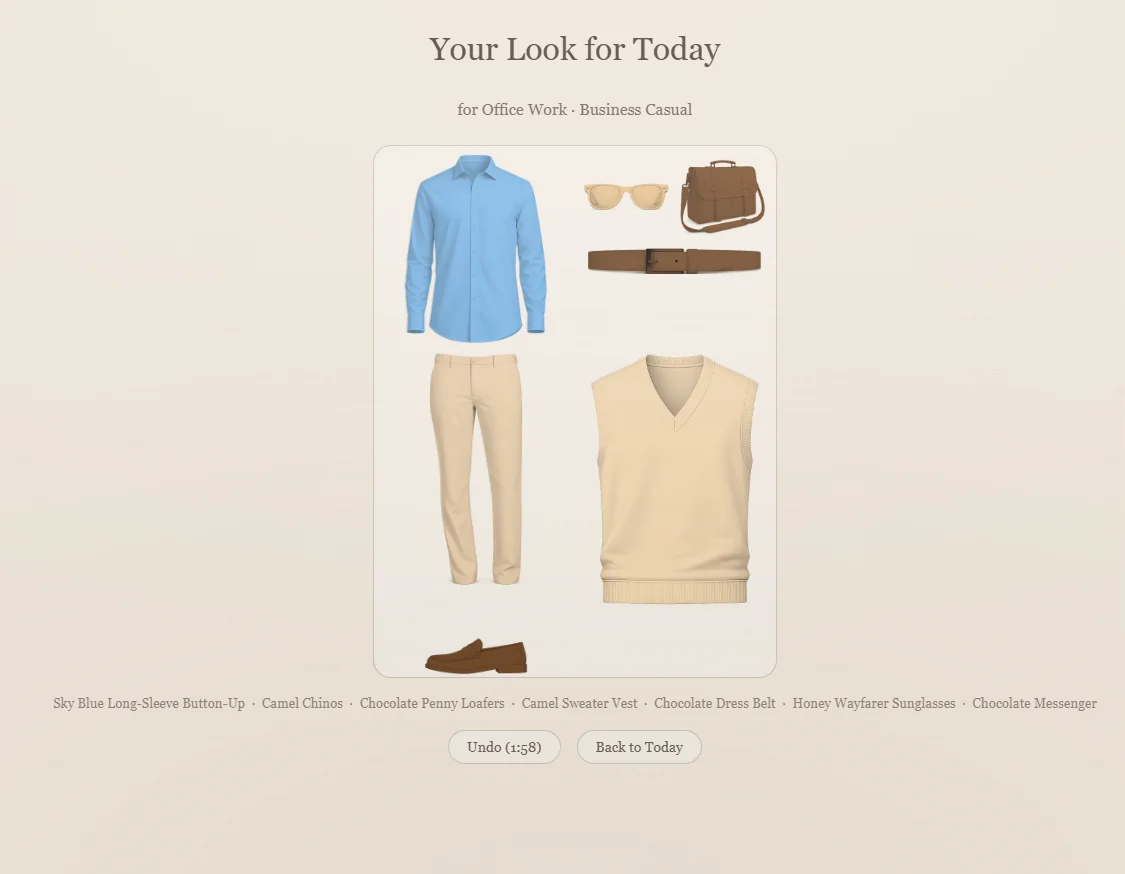
Premium Feature
Decide before the day arrives. Plan outfits for future dates using clothes from your Closet, with the activity, dress expectations, and available weather information in mind.
Step 1 of 6
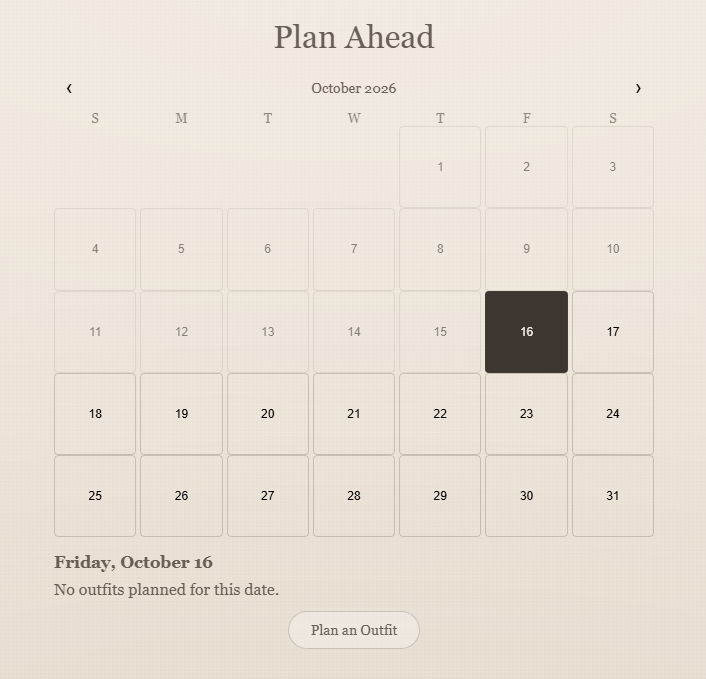
Open Plan Ahead from the menu. Select a future date on the calendar and choose Plan an Outfit. The calendar indicates how many outfits are already planned for each date.
Step 2 of 6
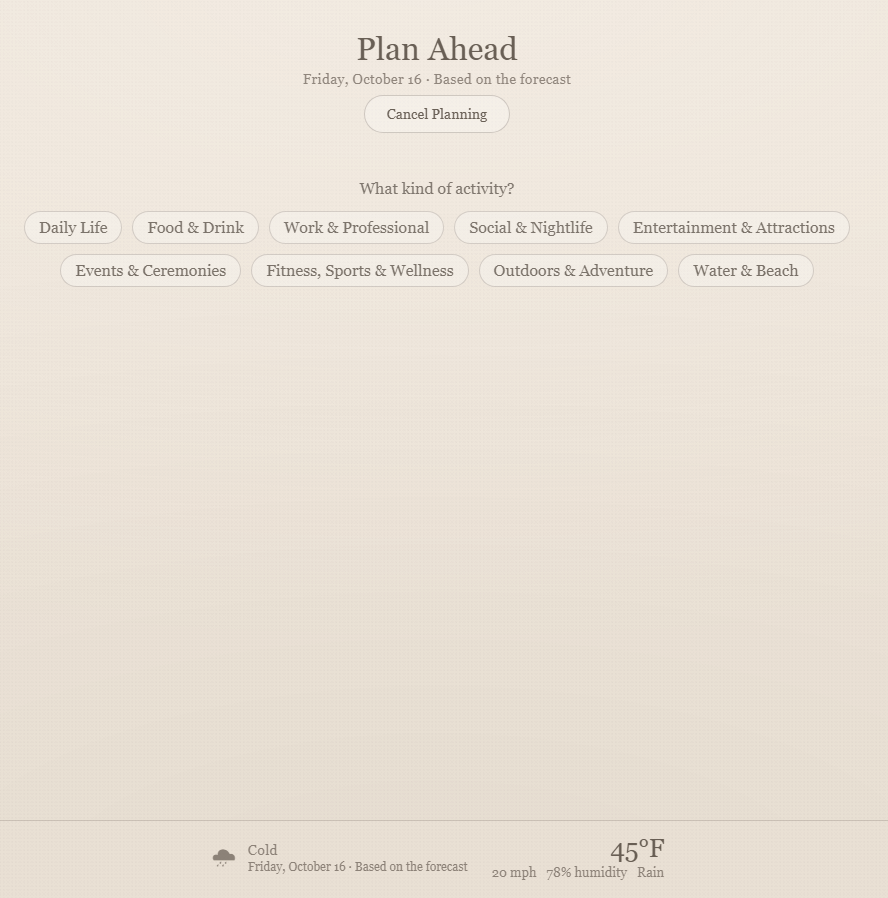
Choose an activity category, the specific activity, and the dress expectations where requested. For example, Work & Professional → Office Work → Business Casual. Indosso uses the forecast when available, or typical seasonal conditions farther ahead.
Step 3 of 6
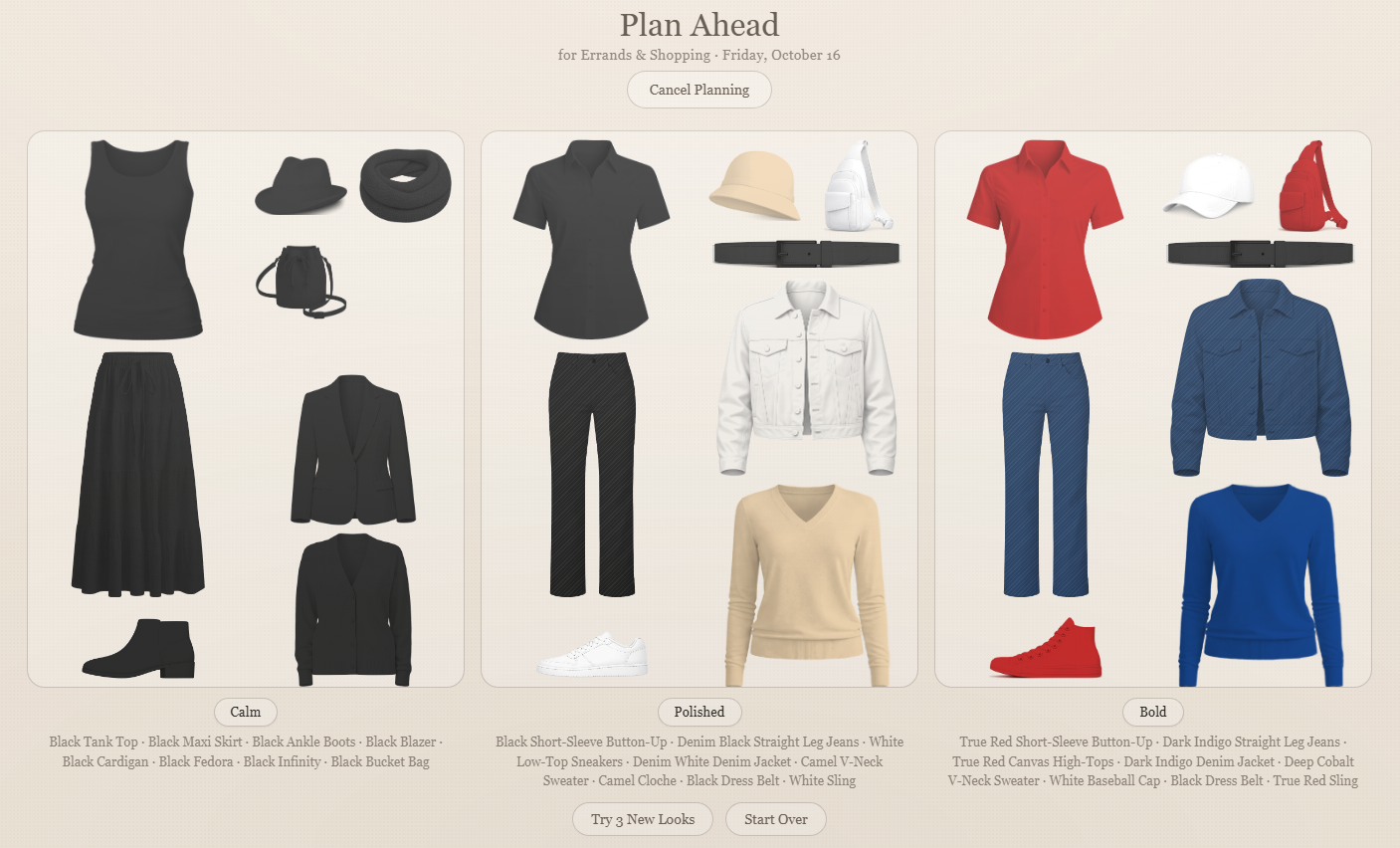
Review up to three suggestions — Calm, Polished, and Bold — made from your own Closet. Choose Try 3 New Looks when you'd like additional combinations, subject to what your Closet supports.
Step 4 of 6
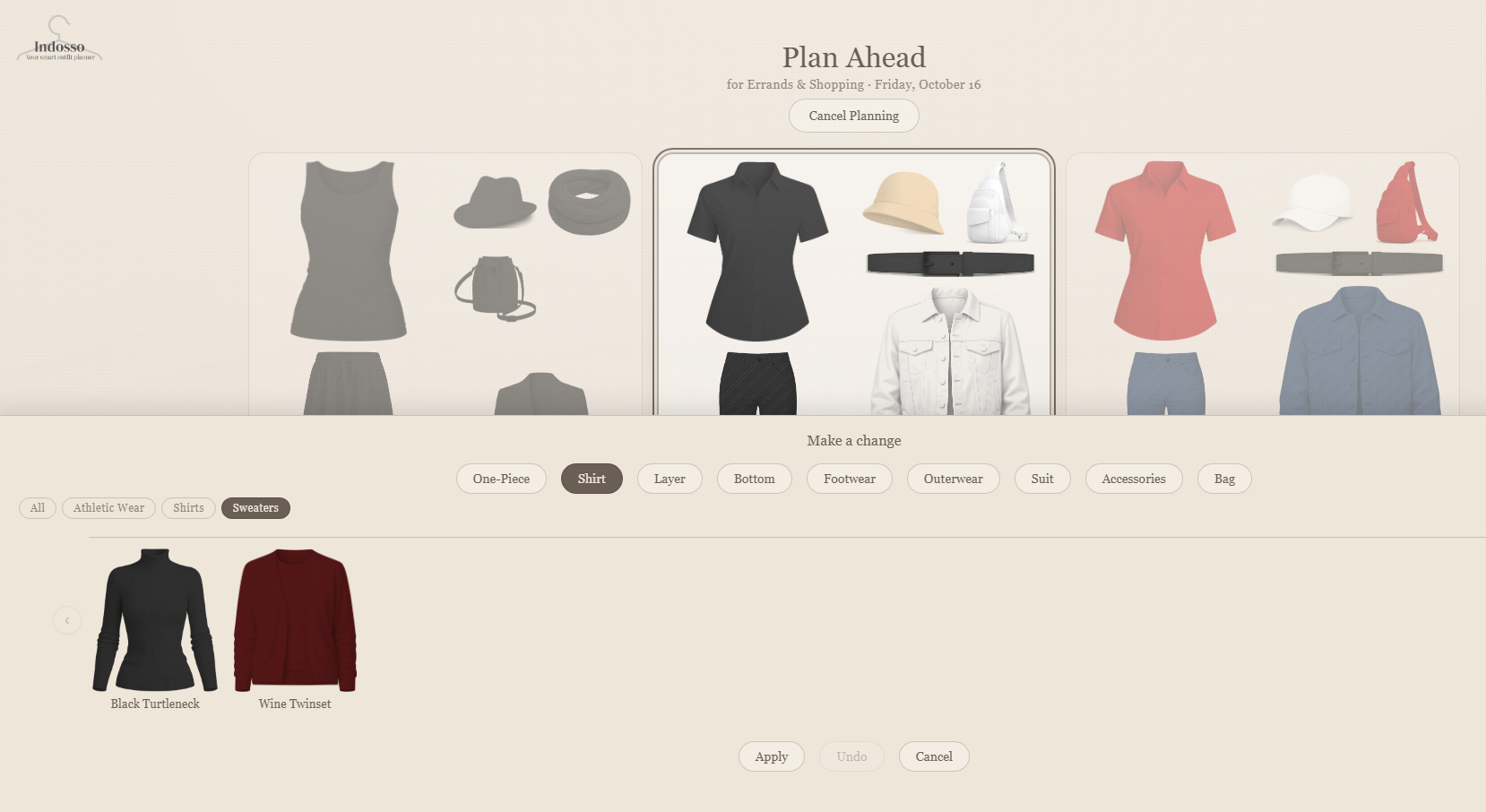
Select a suggested look. If you want to adjust it, use Make a Change to change garments or accessories before committing to the plan. You remain in control of the outfit you choose.
Step 5 of 6
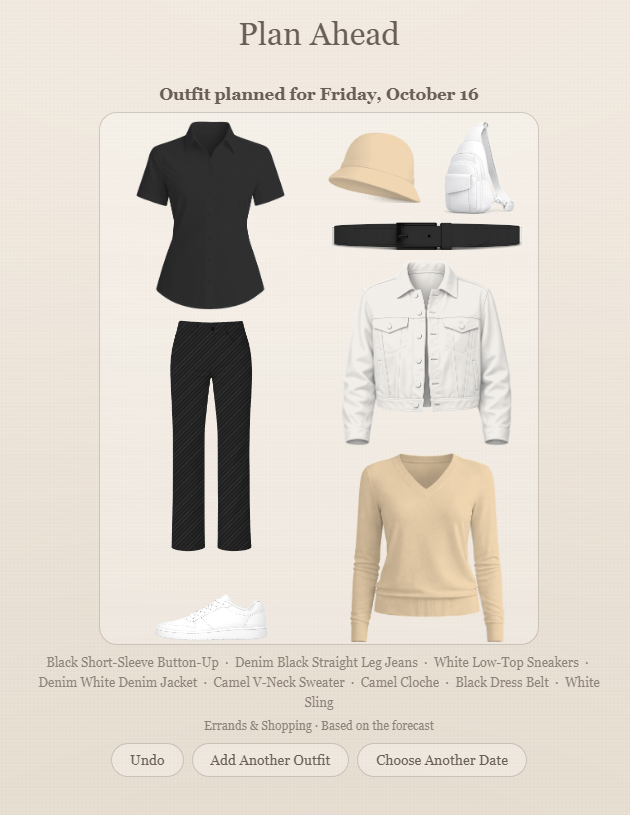
Select Plan This Outfit to commit the selected look to the chosen date. Indosso confirms the planned outfit. Planning an outfit does not mark it as worn.
Step 6 of 6
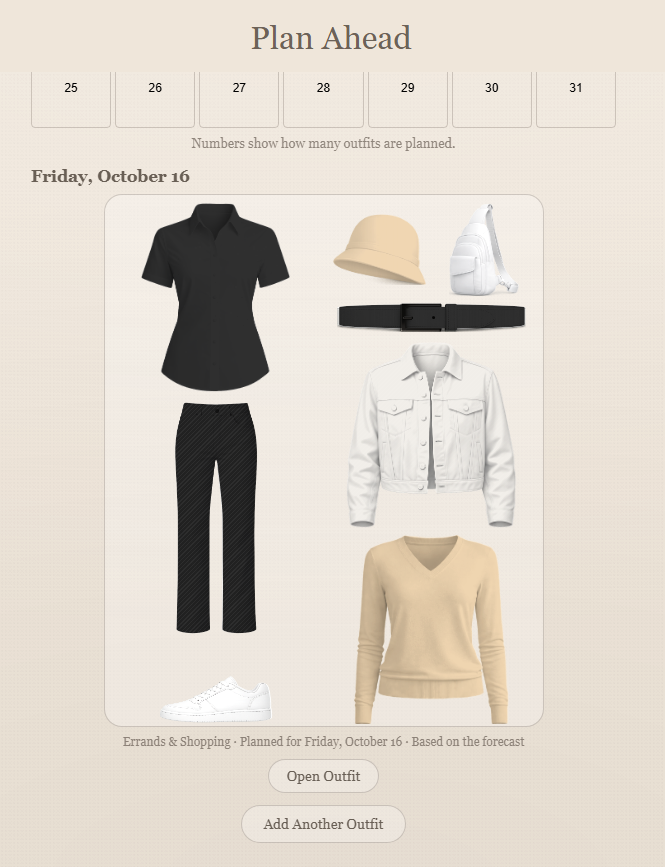
Return to the Plan Ahead calendar to see outfits planned for a date, Open Outfit to review one, Add Another Outfit, or choose another date. Within a planned outfit, the app also offers actions such as Change Date, Change Plans, Make a Change, and Remove Outfit. An overlapping trip does not automatically move the planned outfit into Trip Planning.
Premium Feature
Step 1 of 6
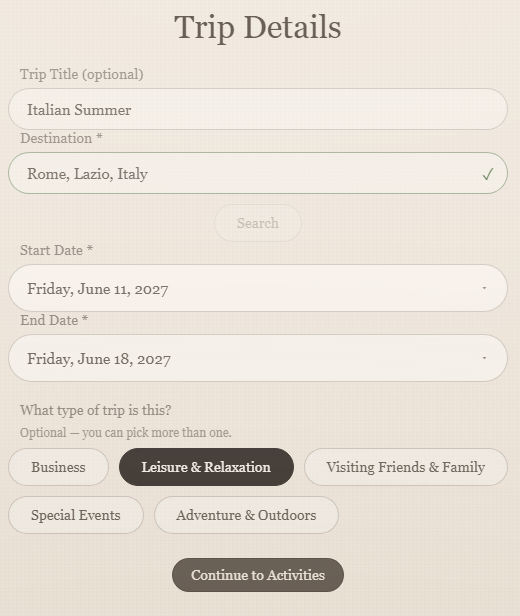
Give your trip a name (optional), choose a destination and travel dates, and select the type of trip you are planning. Where the planning flow asks whether you expect to do laundry, answer so Indosso can plan appropriate packing and repeats.
Step 2 of 6
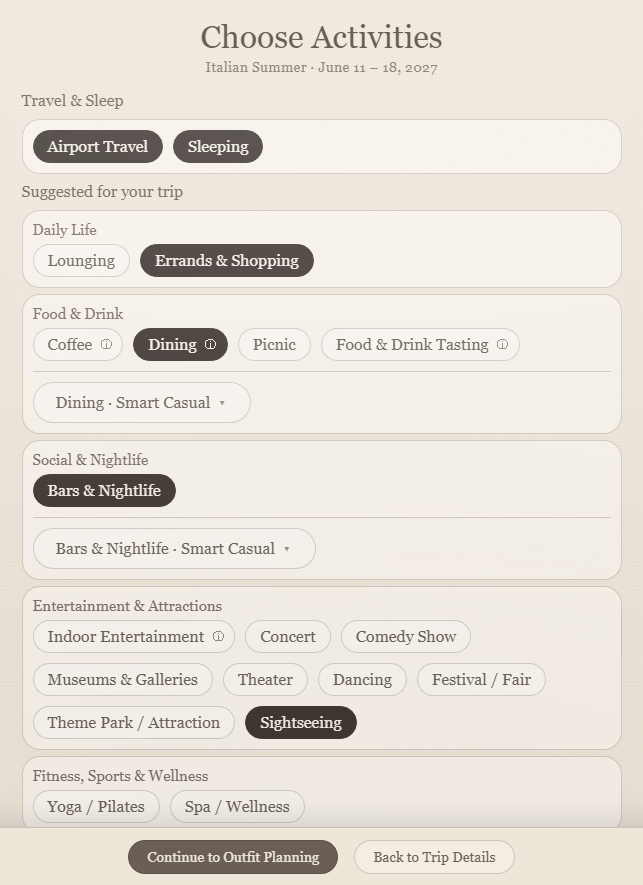
Choose what you plan to do during your trip, including travel and sleeping as needed. Select the activities that apply, use the information icons when you need more detail, and set dress expectations where applicable.
Step 3 of 6
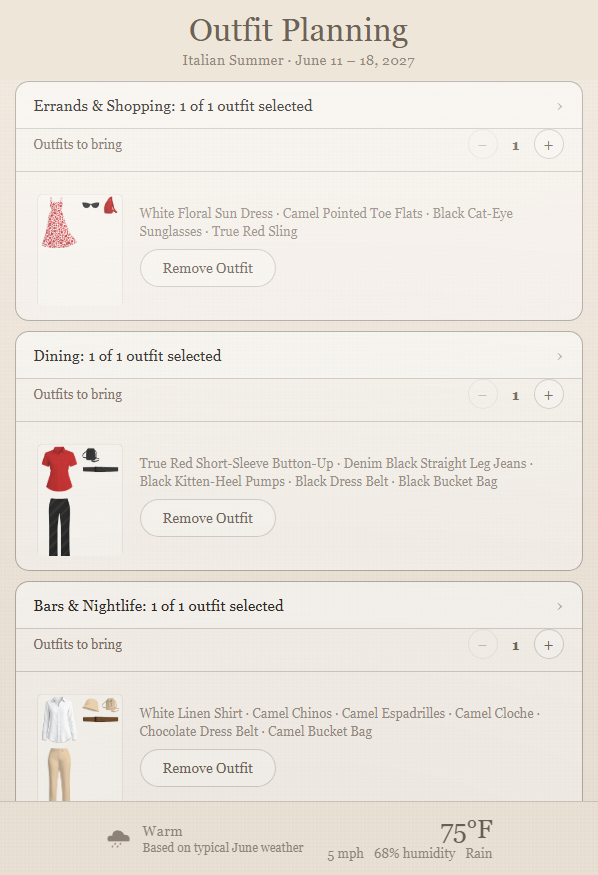
Indosso organizes your selected activities in Outfit Planning. Set how many outfits to bring for each activity and work through the activities one at a time. Airport Travel may show separate Outbound and Return selections.
Step 4 of 6
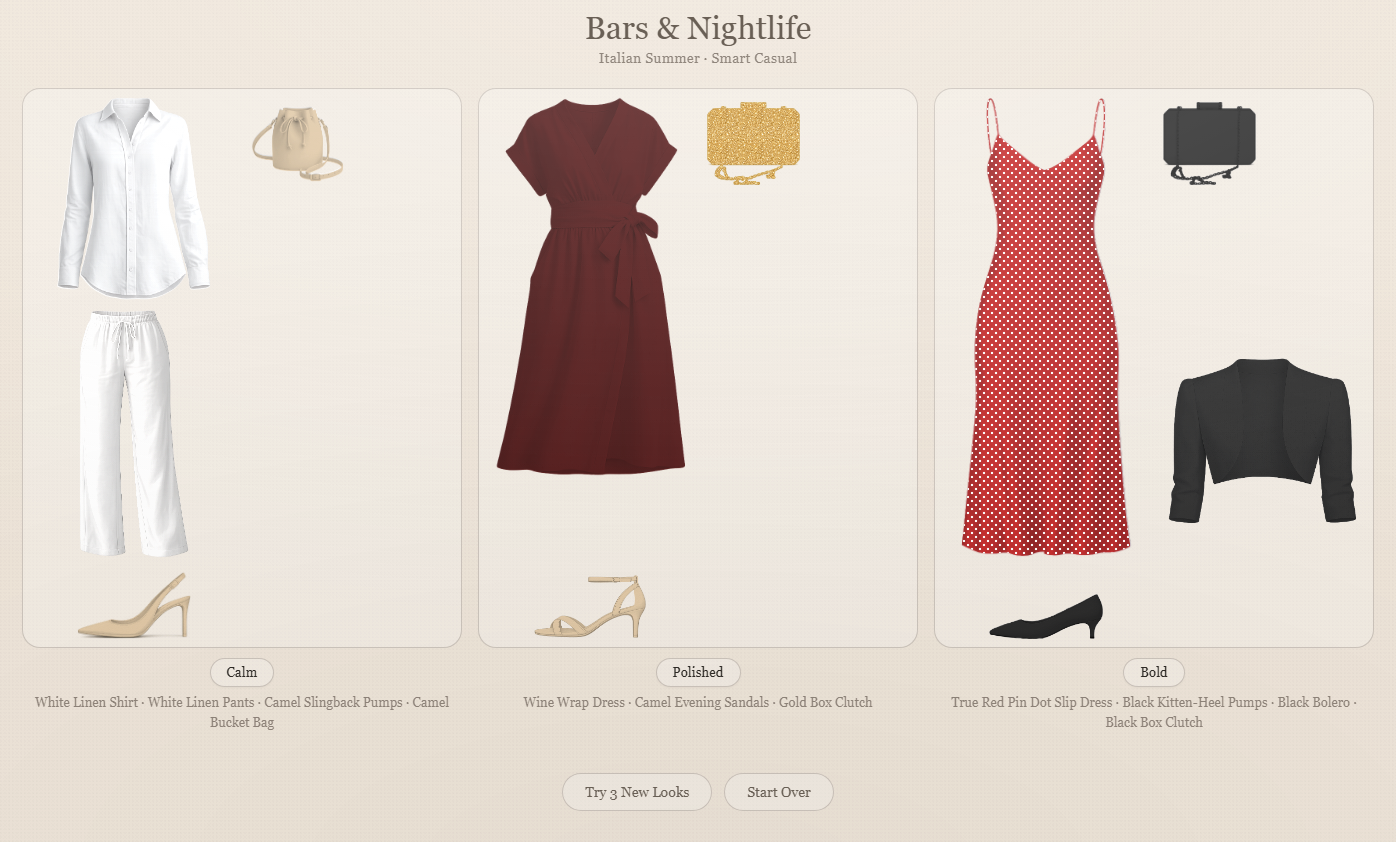
For each activity, explore up to three outfit options: Calm, Polished, and Bold. Choose Try 3 New Looks to see more combinations, or select Make a Change to adjust a garment. Save the outfit for the relevant activity in your trip, then continue planning. The Outfit Planning screen shows your saved outfits and progress toward your selected goal.
Step 5 of 6
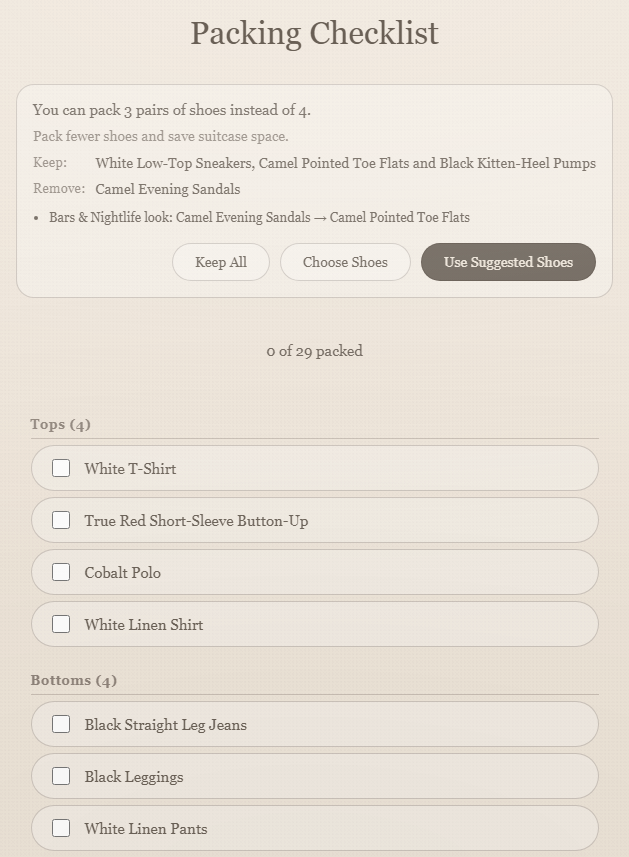
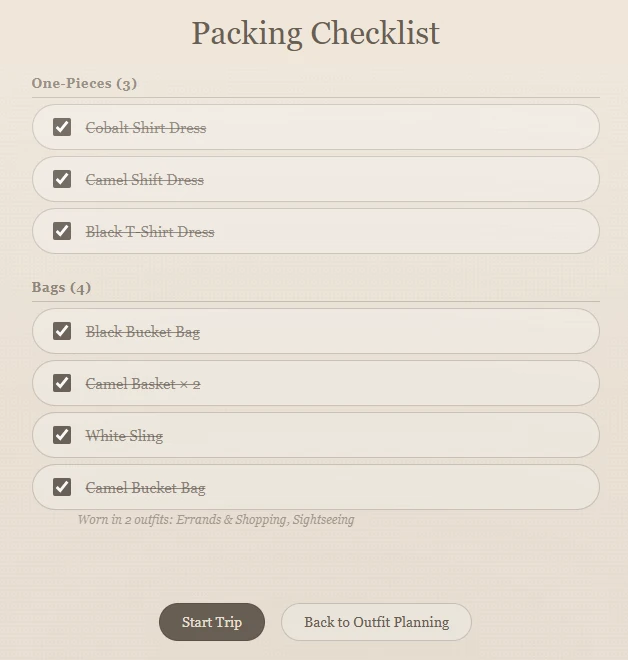
Once you've selected your outfits, open Review Packing List. Indosso gathers the garments into a checklist organized by category, including supporting items such as underwear/sleepwear and bags when applicable. Where shown, the list identifies which planned outfits use a garment. Review any suggested shoe consolidation: Keep All, Choose Shoes, or Use Suggested Shoes. Check off items as you pack and adjust available quantities as needed.
Step 6 of 6
You can start your trip on or after its departure date, once it has at least one complete saved outfit. You don't need to tick off the packing checklist first. Choose Start Trip and confirm. This transitions from Plan a Trip to the separate Trip Active mode, where outfit choices use the wardrobe brought on the trip.
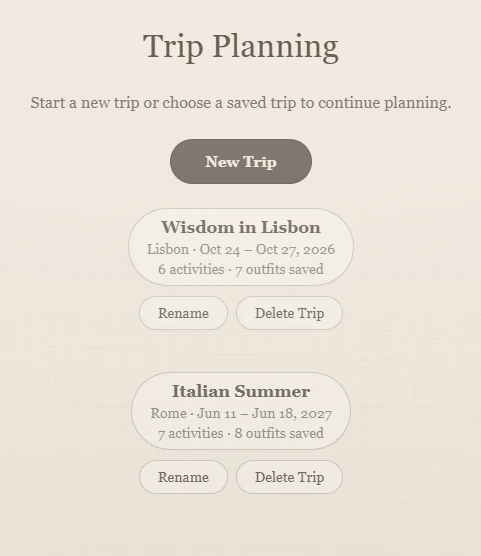
You don't have to finish planning in one sitting. Choose Save Trip, then return through Trip → Plan a Trip → Resume Trip Plan, select the saved trip, and continue planning.
Premium Feature
Step 1 of 6
You can start your trip on or after its departure date, once it has at least one complete saved outfit; ticking off your packing checklist is optional. Select Start Trip and confirm, and Indosso enters Trip Active, using the clothes you packed for this trip rather than your full closet.
Step 2 of 6
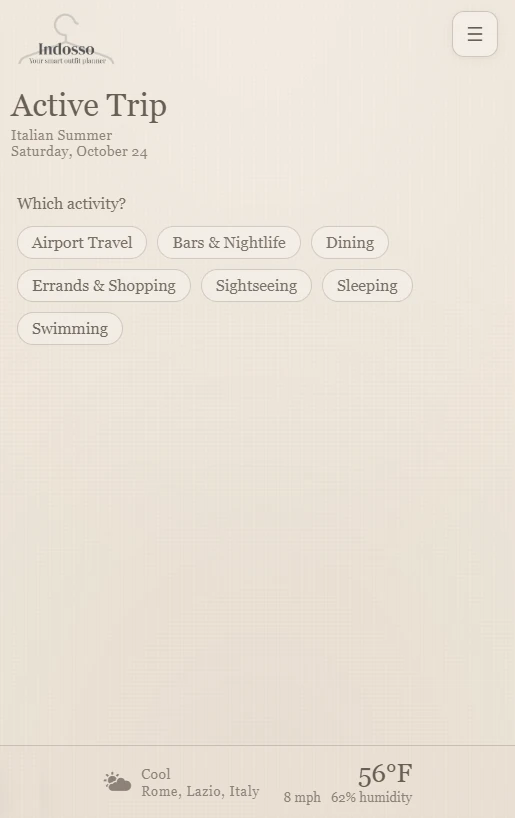
On the Active Trip screen, choose what you're doing from the activities planned for your trip.
Step 3 of 6
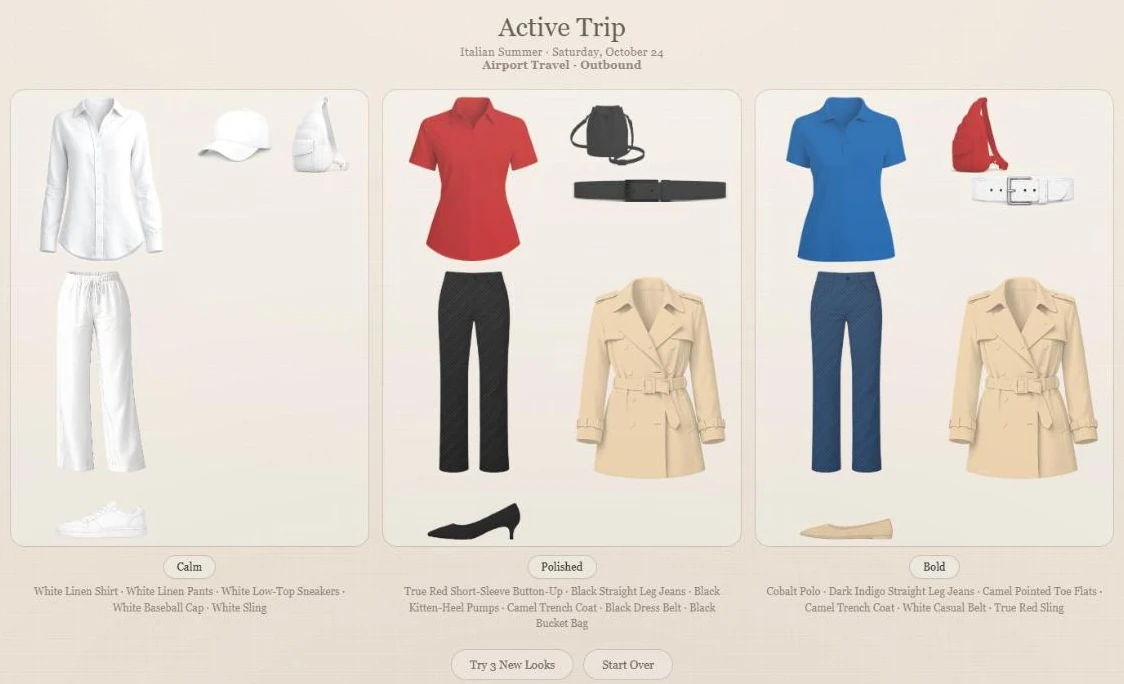
Indosso suggests up to three looks—Calm, Polished, and Bold—using the packed wardrobe and the conditions relevant to your trip. Review the available options before deciding what to wear.
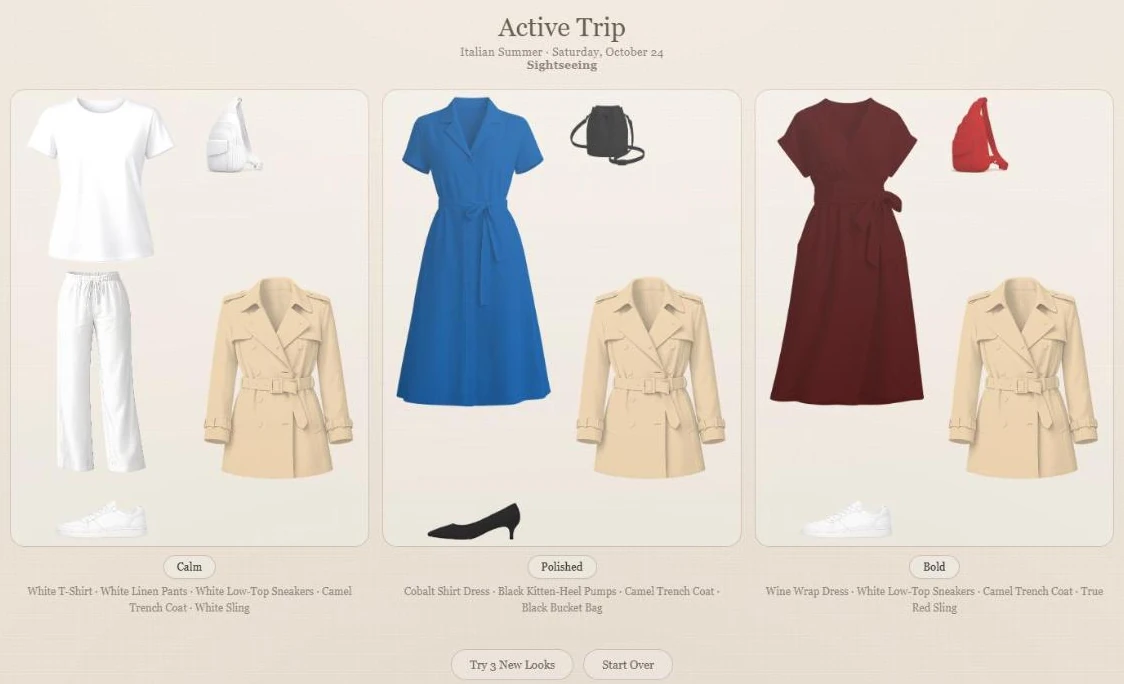
Step 4 of 6
Use Try 3 New Looks to explore other combinations, or Make a Change to substitute garments available in your packed wardrobe. Select the look you want to wear. Garments left in your full closet are not available for these changes while the trip is active.
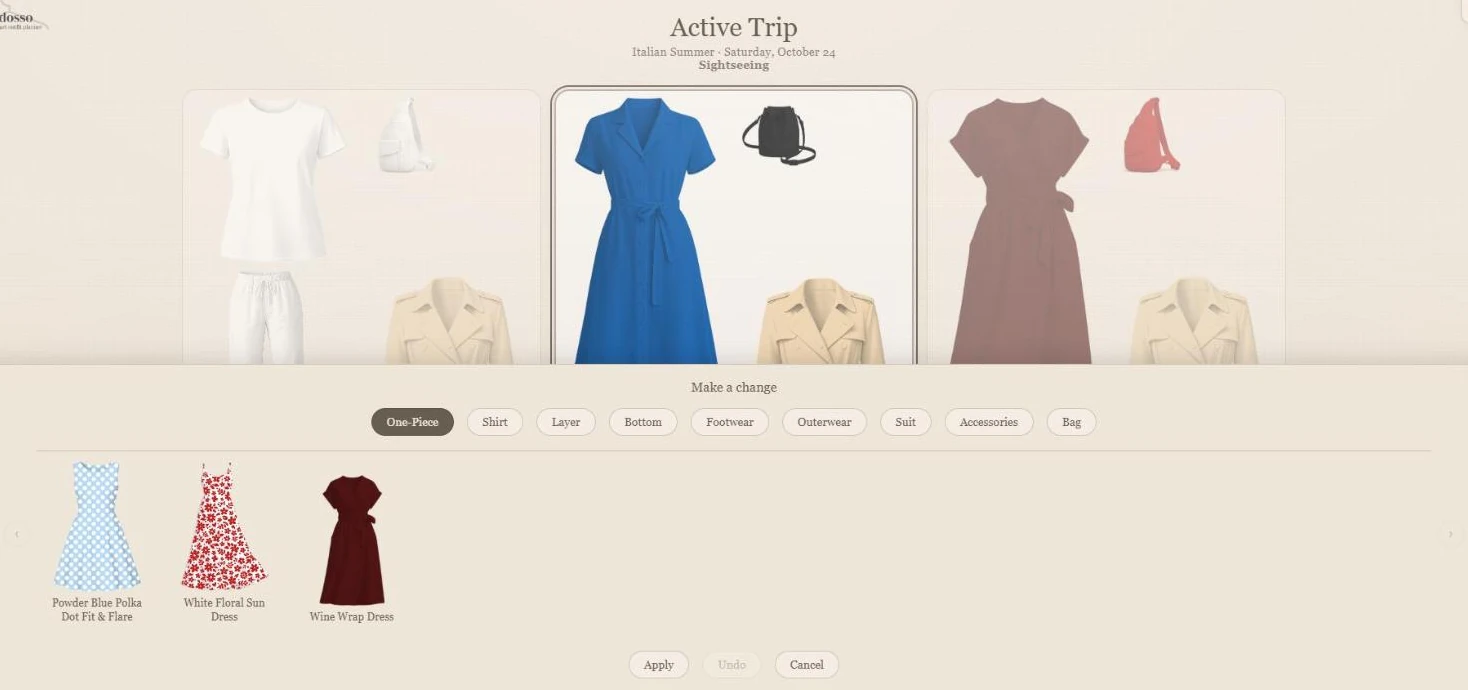
Step 5 of 6
When preparing to return, open Trip → Packing List. Review the Packing to Go Home checklist and check off belongings as you repack. This step is about making sure you bring your belongings home, not starting a new trip plan.
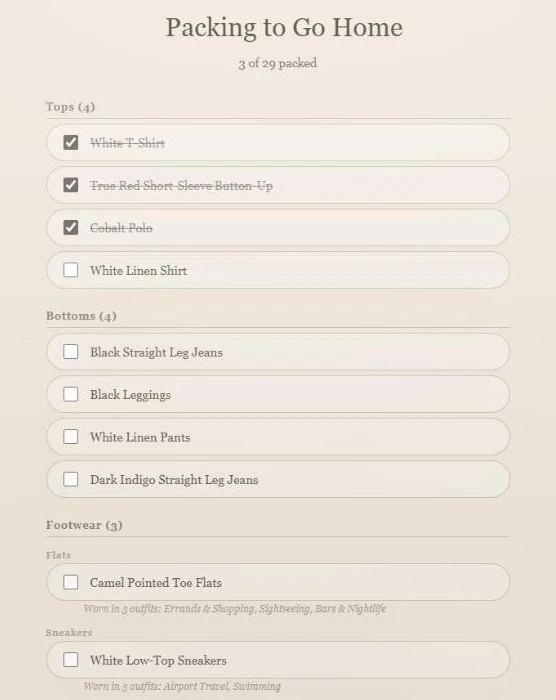
Step 6 of 6
When your trip is finished, choose End Trip. Indosso exits Trip Active and returns to ordinary Today dressing with the full Closet available again.
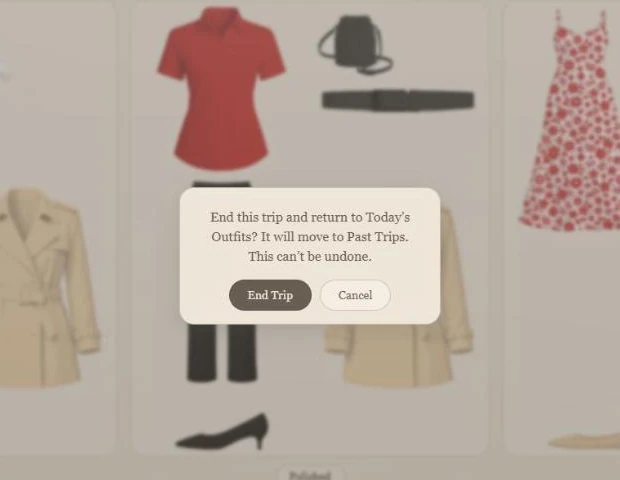
Free lets you genuinely use Indosso. Premium removes the limits and adds planning.
Ready to try Indosso?